 American College of Emergency Physicians
Lead Retrieval Instructions
Set Up Lead Qualification Questions
- From your desktop, go to exhibitor.acep.org.
- Select the current event.
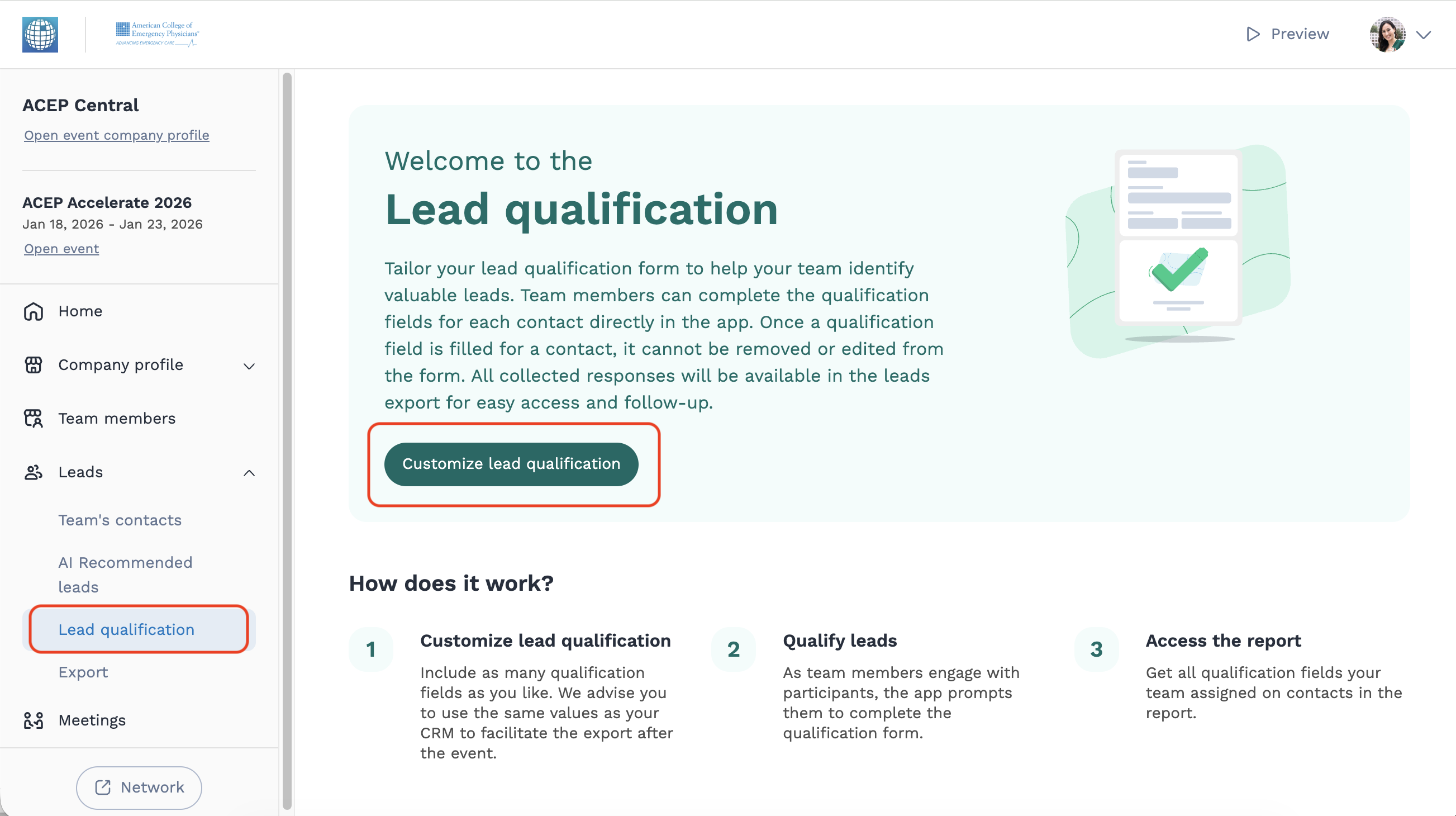
- Navigate to the Lead tab and select Lead Qualification.
- Click the Customize Lead Qualification button.
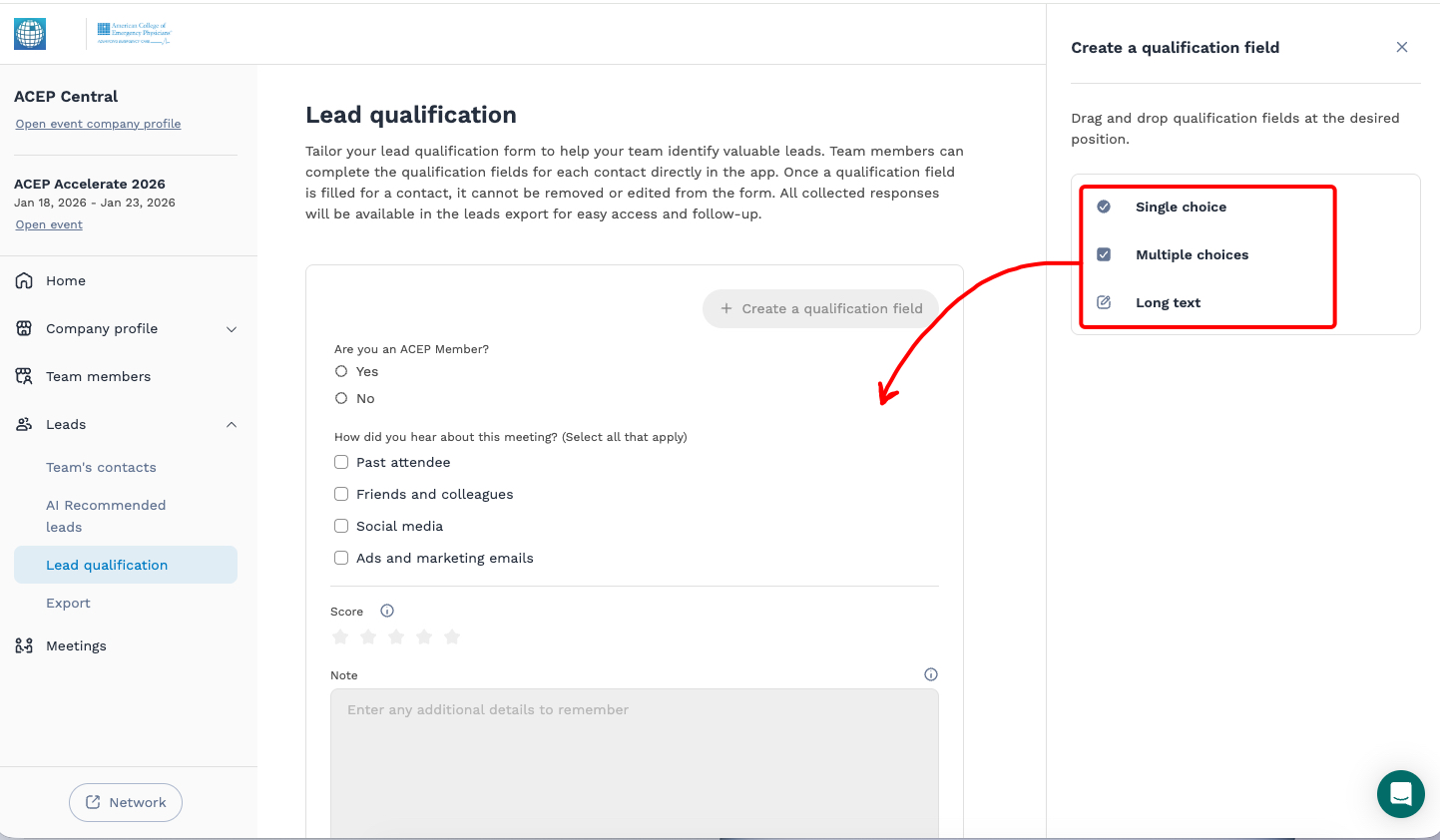
- Build your questions using the drag-and-drop qualification types:
- Single choice
- Multiple choice (best practice: include “Select all that apply”)
- Long text
- Continue adding, editing, and reordering questions until your lead qualification setup is complete.
Note: Once a question is answered, you cannot change the question.
Enable Lead Sharing With Your Team
Note: Due to security reasons, each team member will need to enable the sharing leads setting on their own account/device.
Desktop Instructions
- From your desktop, go to exhibitor.acep.org.
- Select the current event.
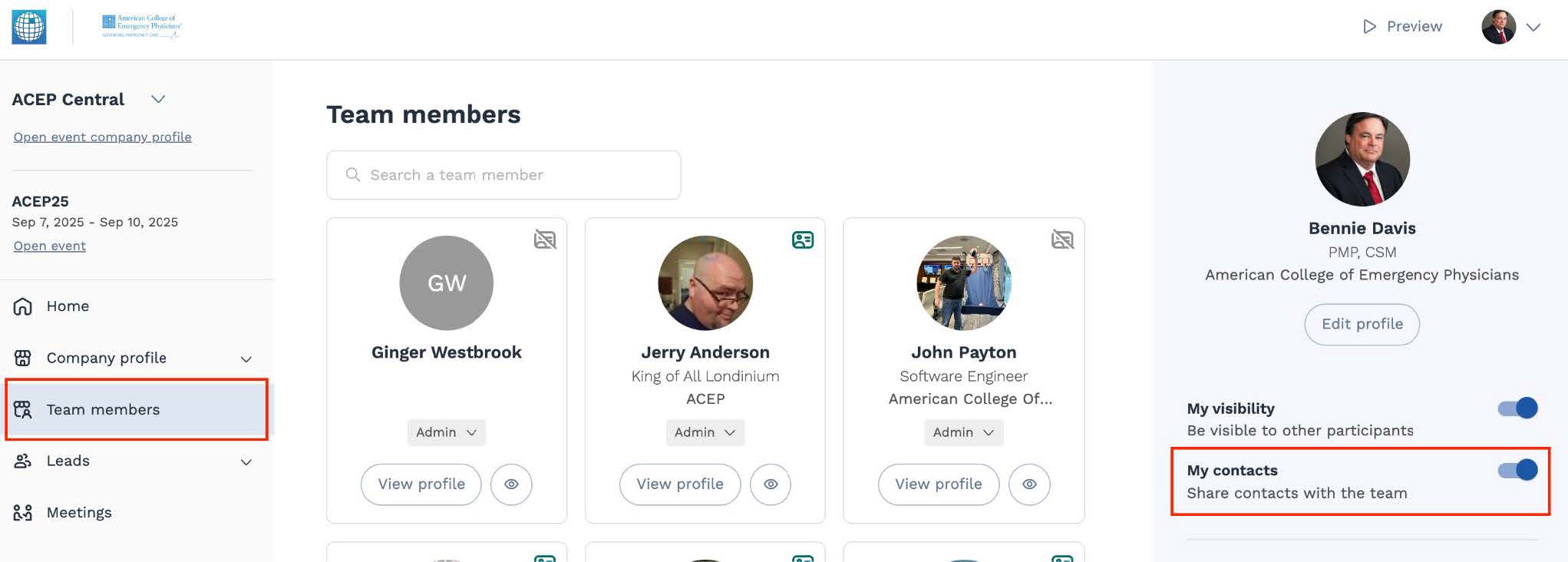
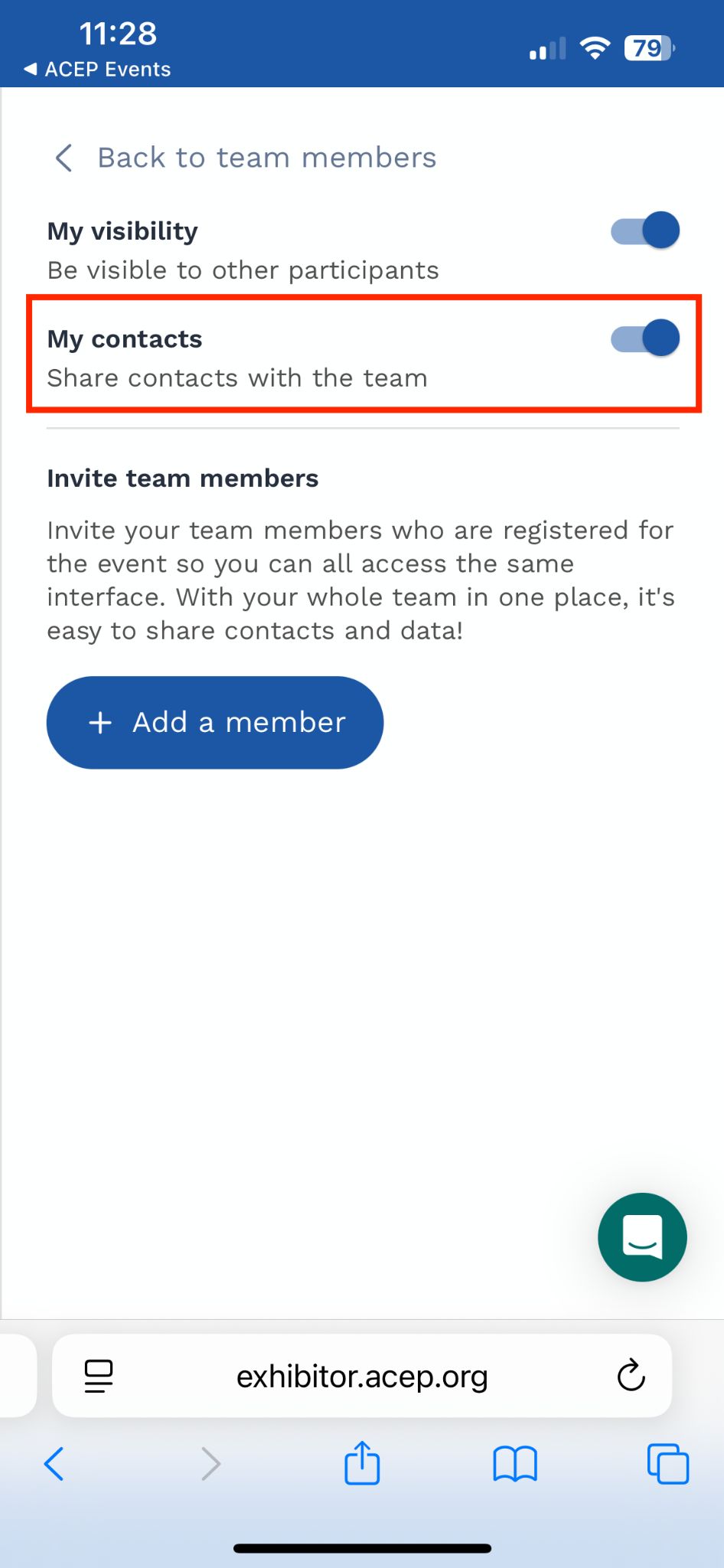
- Navigate to the Team Members tab and enable the My Contacts setting.
- This will allow your scans to populate in the shared list of contacts collected by your team.
Mobile Device Instructions
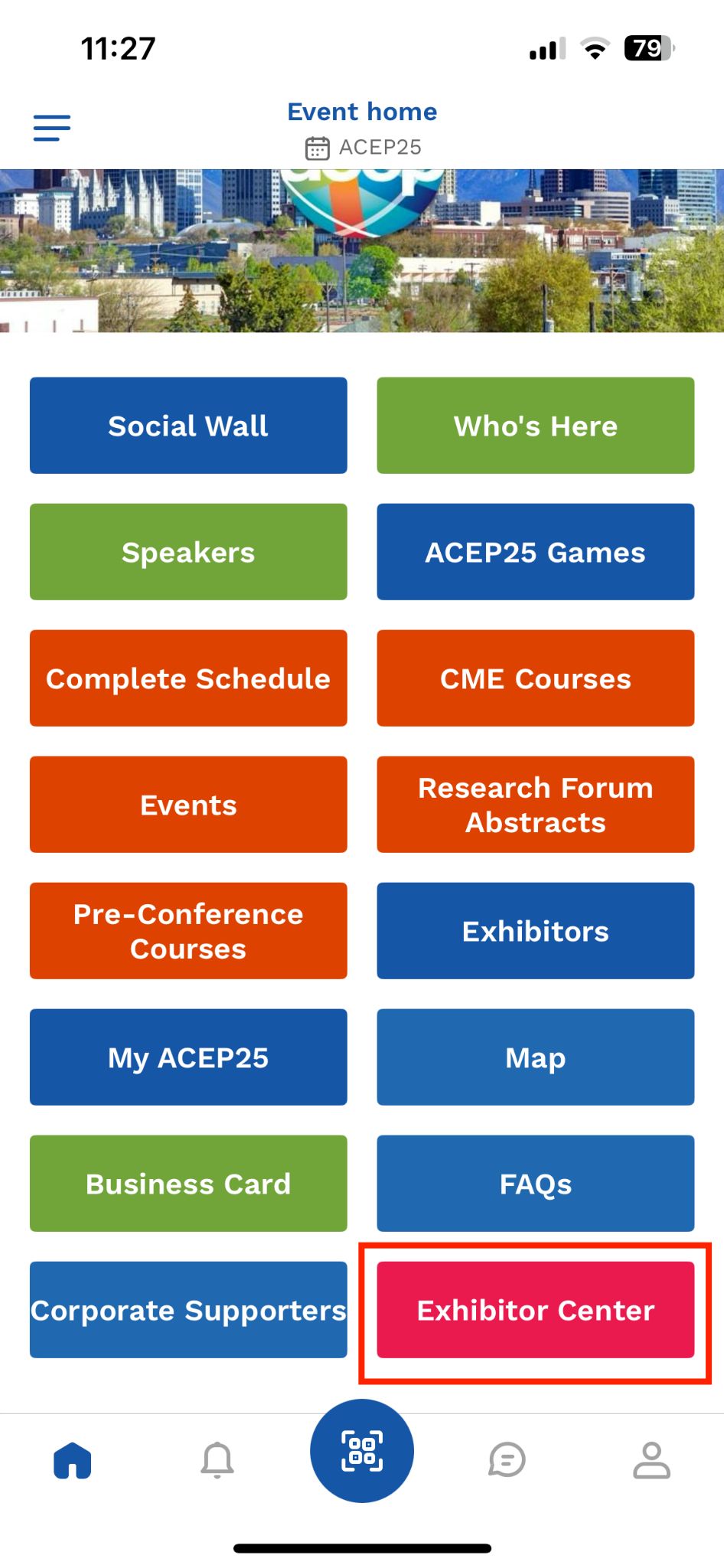
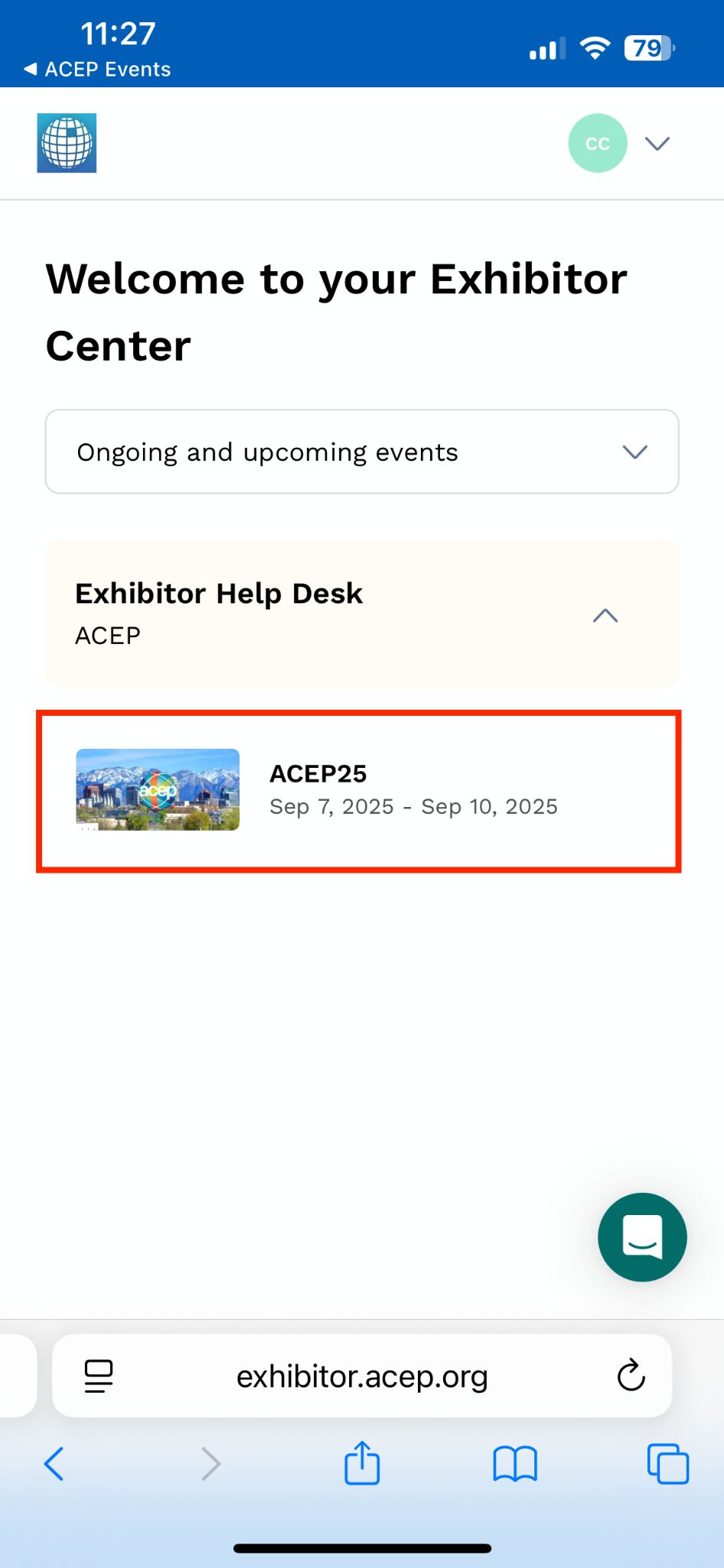
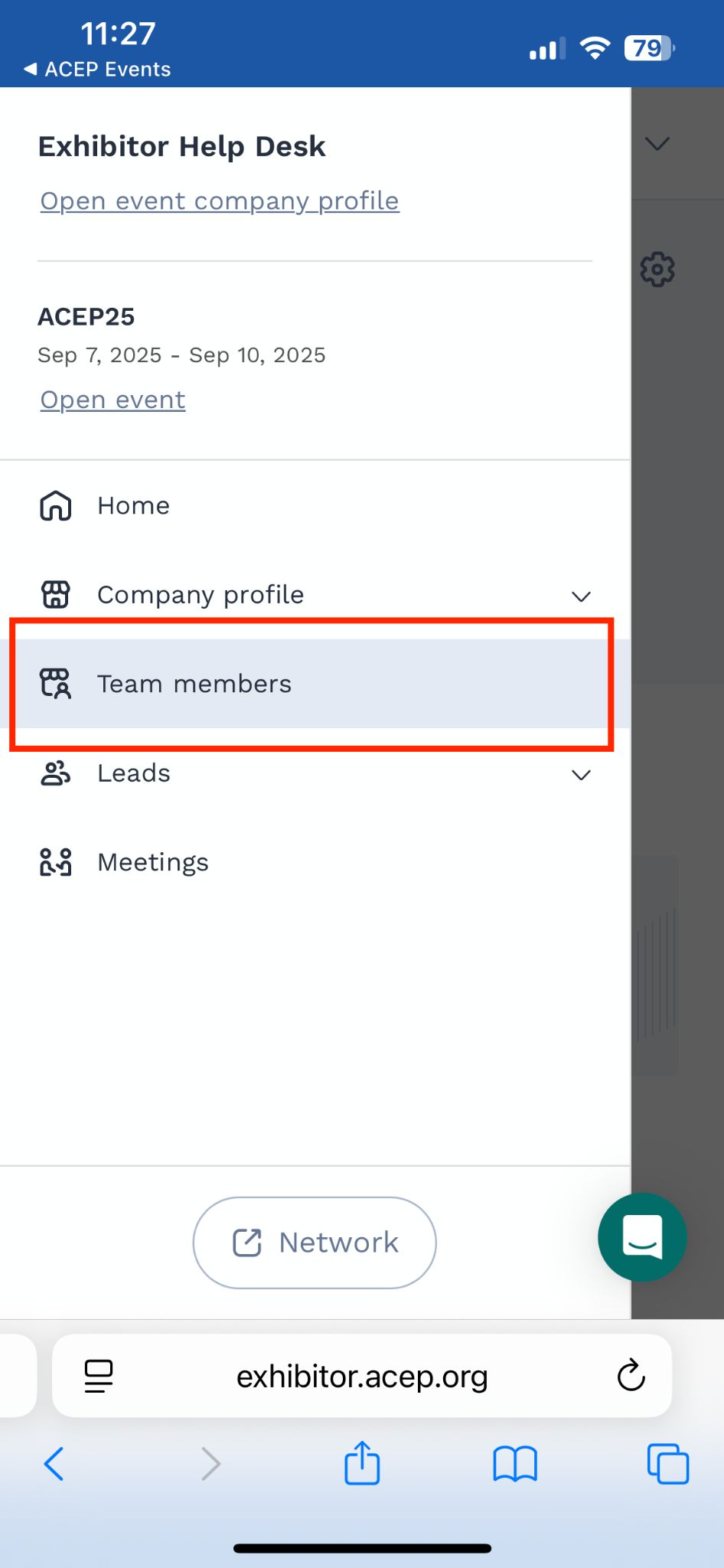
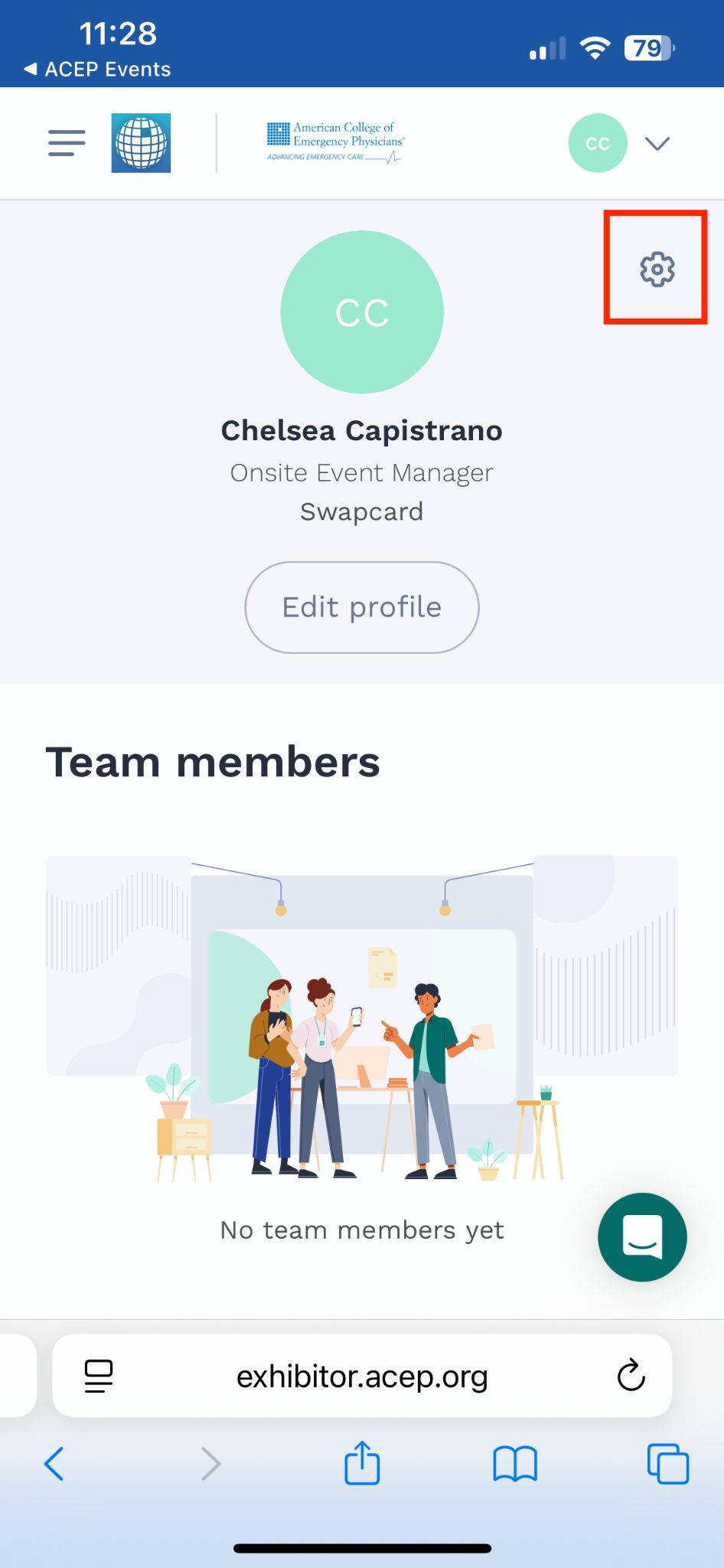
How to Scan Leads
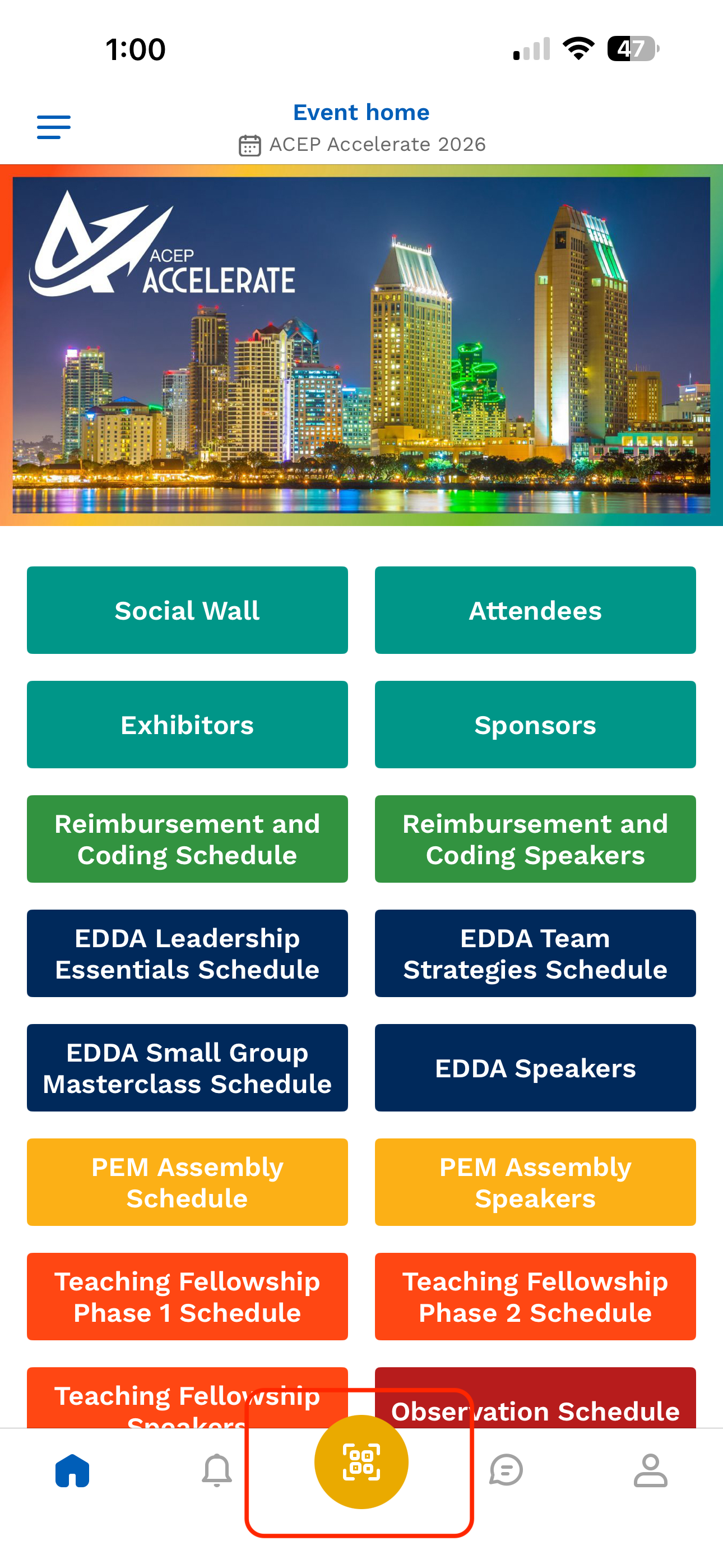
- From the ACEP Meeting app homepage, tap the camera icon at the bottom of the screen.
- If prompted, allow the app access to your camera.
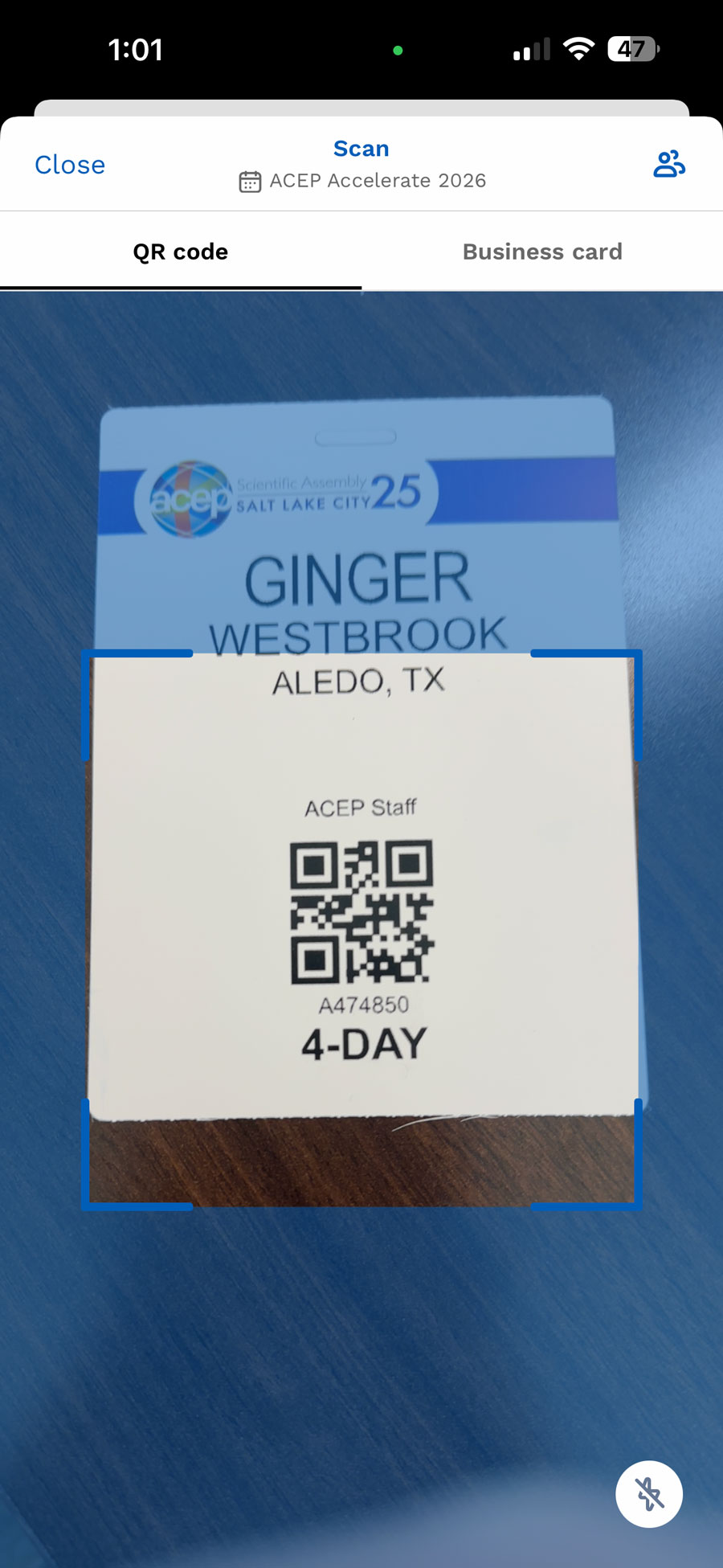
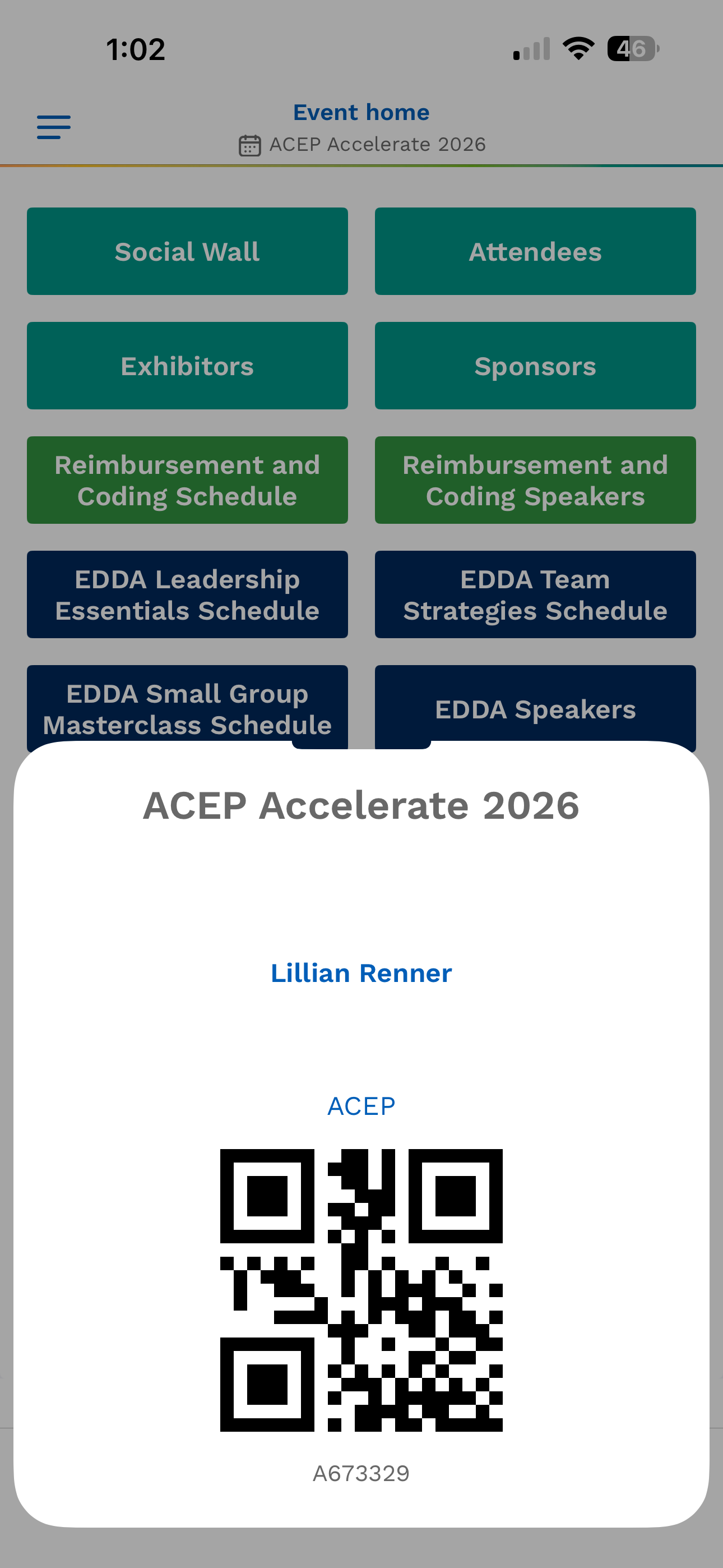
- Scan the QR code on the attendee’s badge or digital business card.
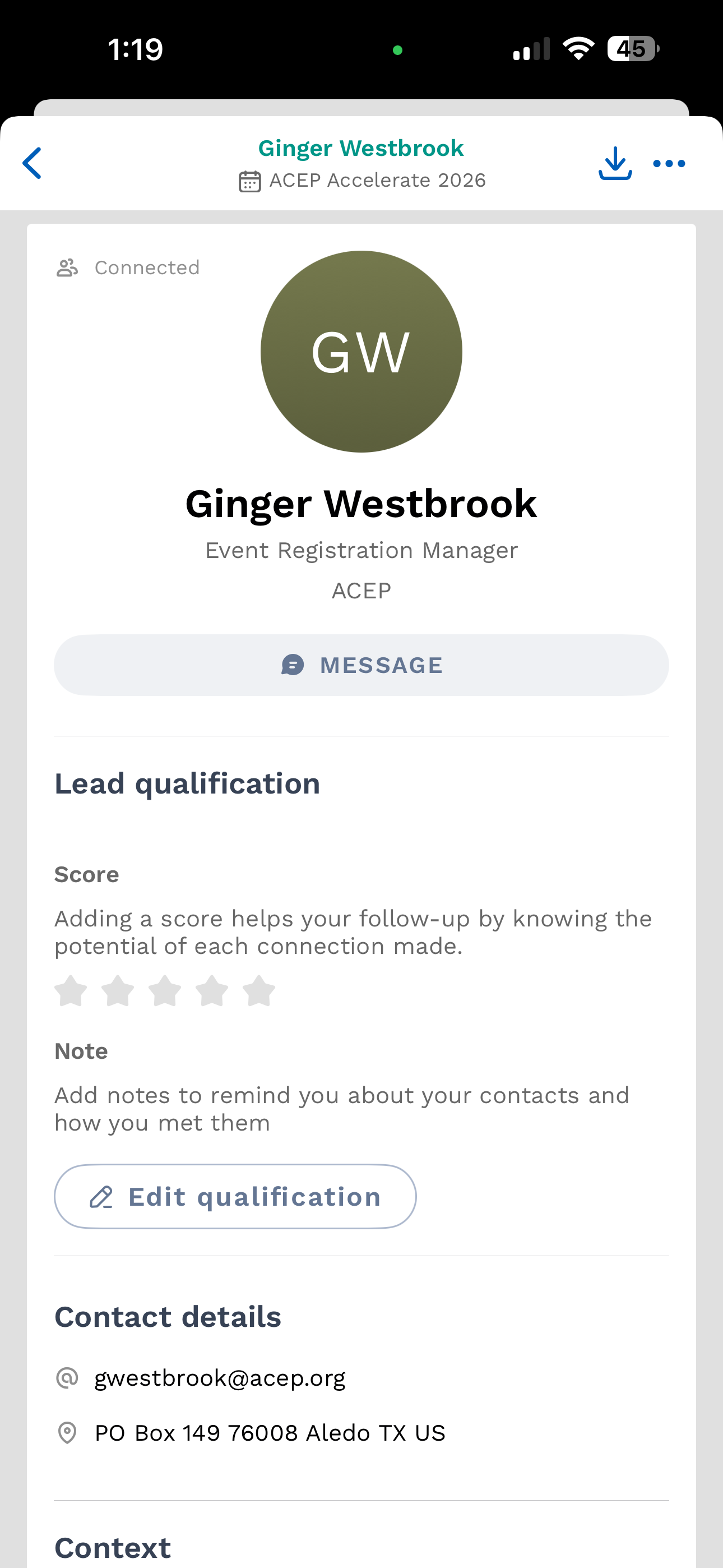
- If your company purchased Lead Qualification, be sure to ask the provided questions and complete the questionnaire.
Digital Business Card
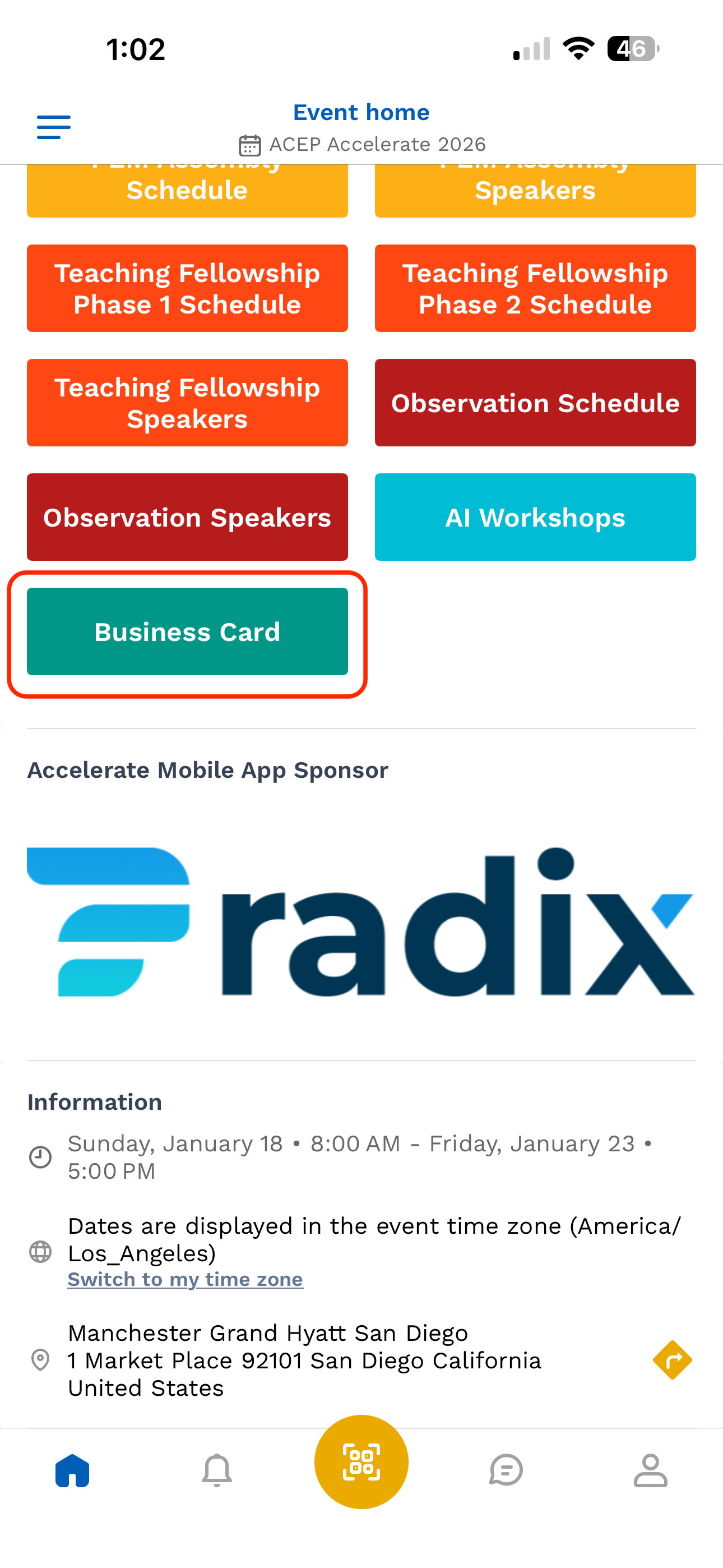
To access an attendee's digital business card, ask the participant to click the Business Card button on the meeting homepage to display their QR code.
How to Export Scanned Leads
Note: For the best experience, please use a desktop computer, as lead capture data will be exported in Excel format.
Desktop Instruction
- From your desktop, go to exhibitor.acep.org.
- Select the current event.
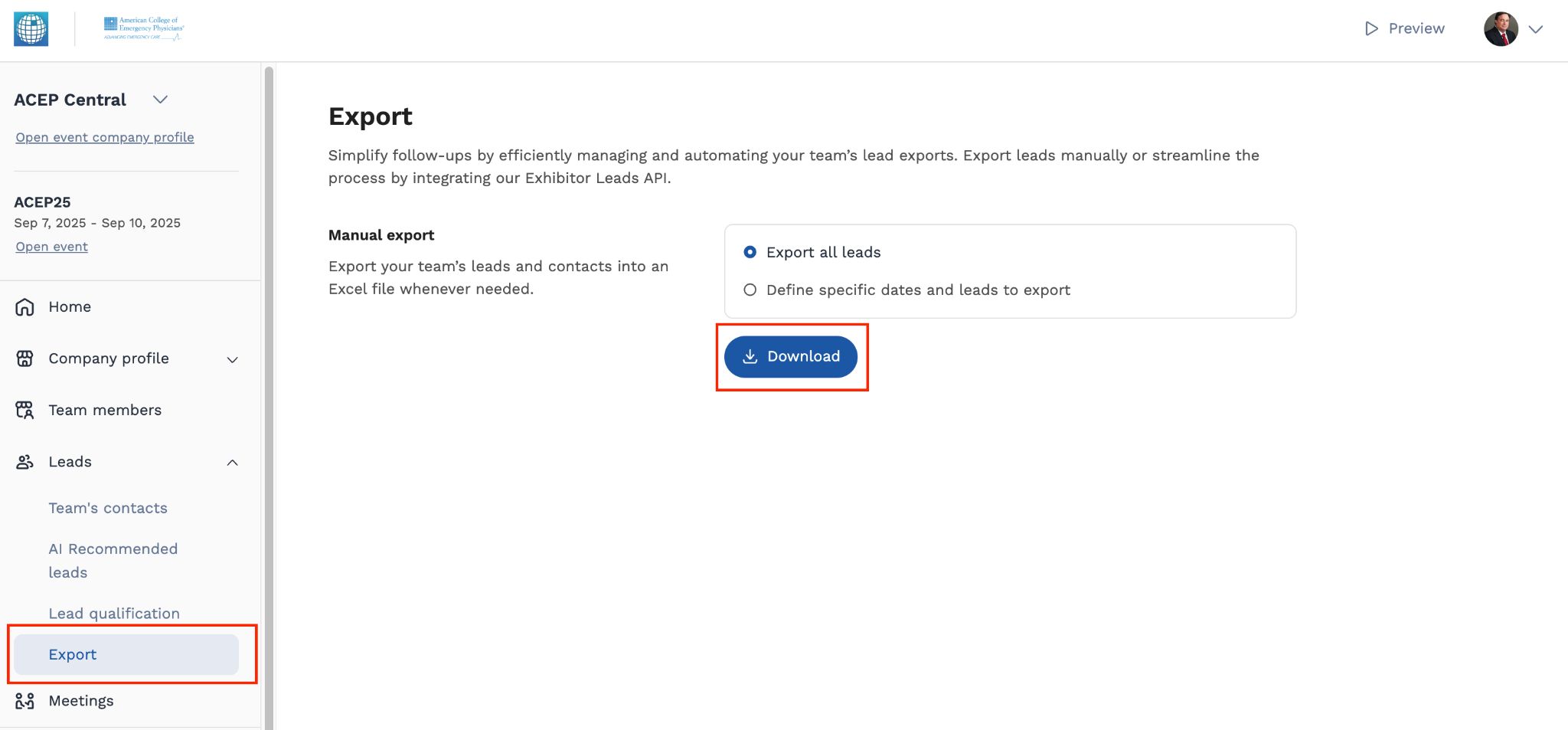
- Navigate to the Lead tab and select Export.
- Click the Download button to export an Excel (.xlsx) file.