 American College of Emergency Physicians
Manage Your Lead Capture
Navigate Page:
Share my leads with my team | Lead Qualification Questions | Export Leads | Capture Leads
Share my leads with my team
MOBILE
Each team member must turn this on individually so all leads can be exported together.
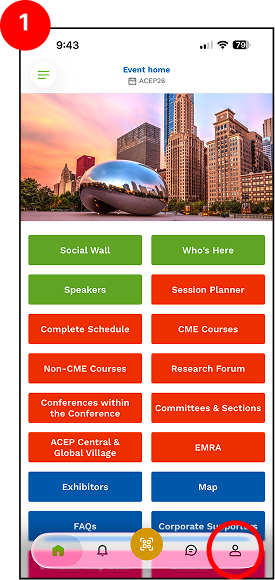
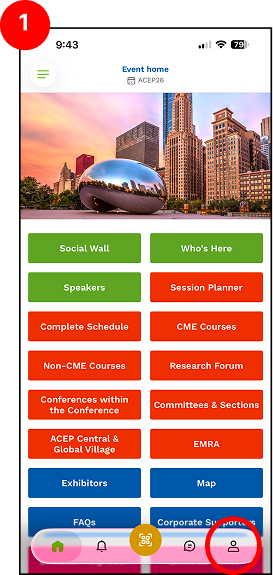
- Open the ACEP Events App and tap the Profile icon (bottom right).
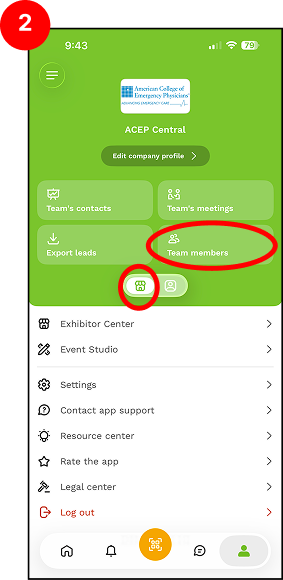
- Select Exhibitor Center > Team members
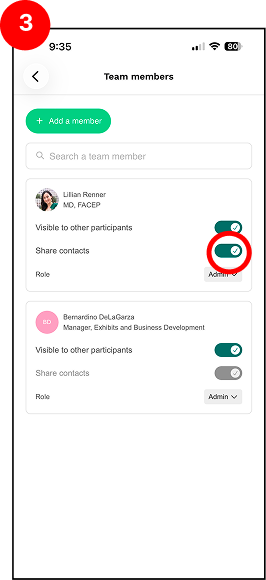
- Toggle on the Share contacts
DESKTOP
Each team member must turn this on individually so all leads can be exported together.
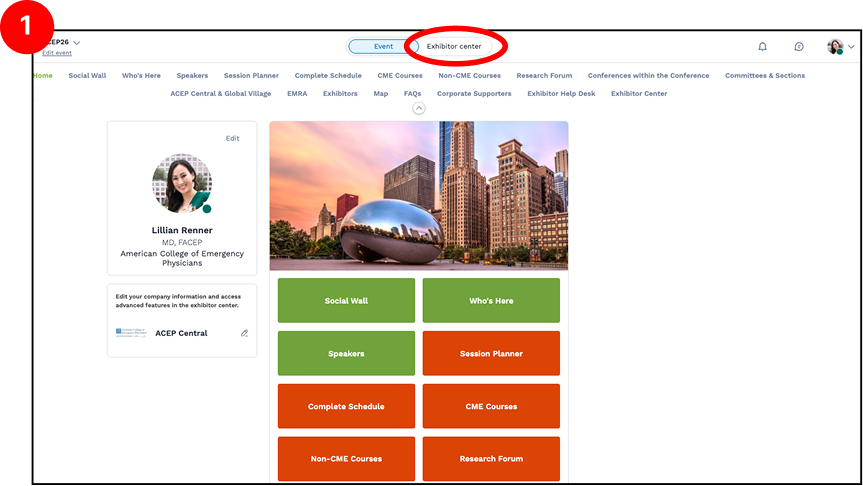
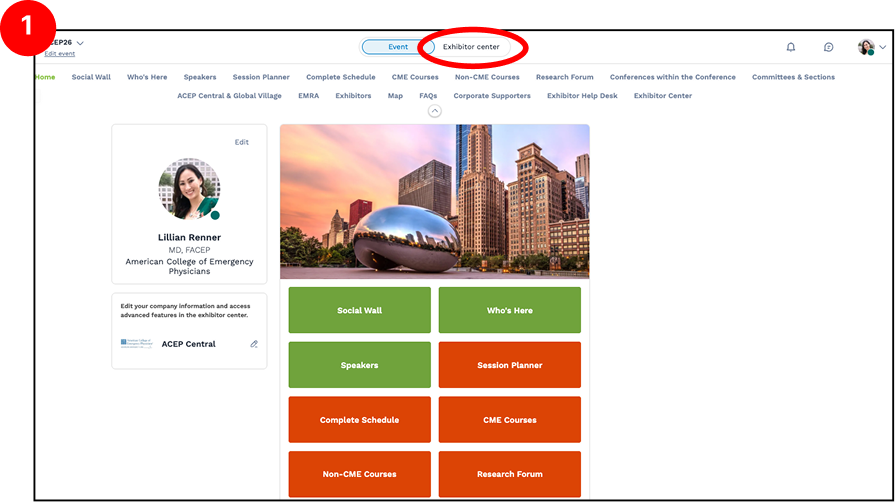
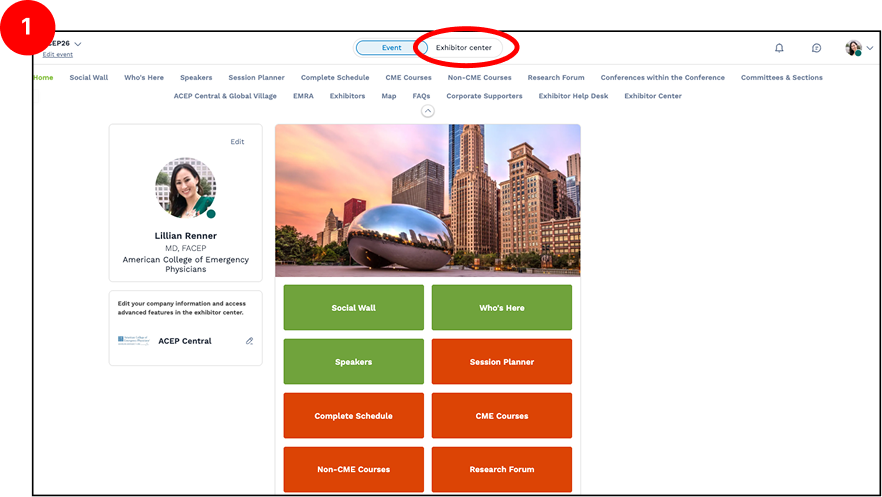
- Go to https://events.acep.org > Select Exhibitor Center (top of page)
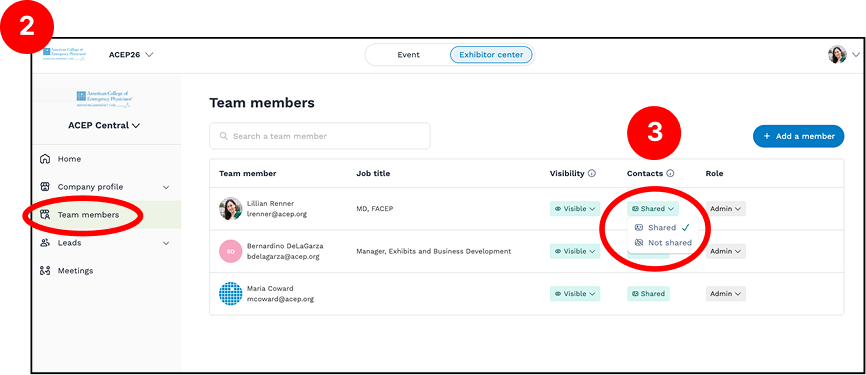
- Navigate to Team members (Left navigation)
- Under Contacts column, select Shared
Lead Qualification Questions
This feature is only available to those who purchased Lead Qualification.
MOBILE
- Open the ACEP Events App and tap the Profile icon (bottom right).
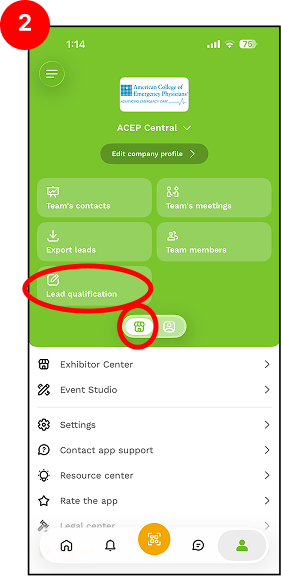
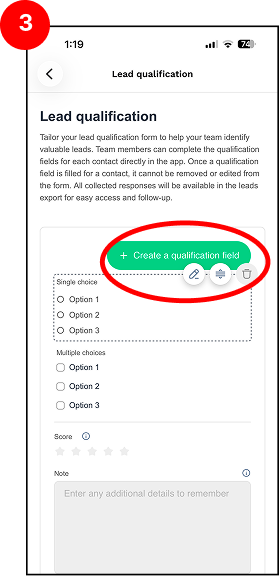
- Select Exhibitor Center > Lead qualification
- Select Create a qualification field > Create new, edit or delete questions
DESKTOP
- Go to https://events.acep.org > Select Exhibitor Center (top of page)
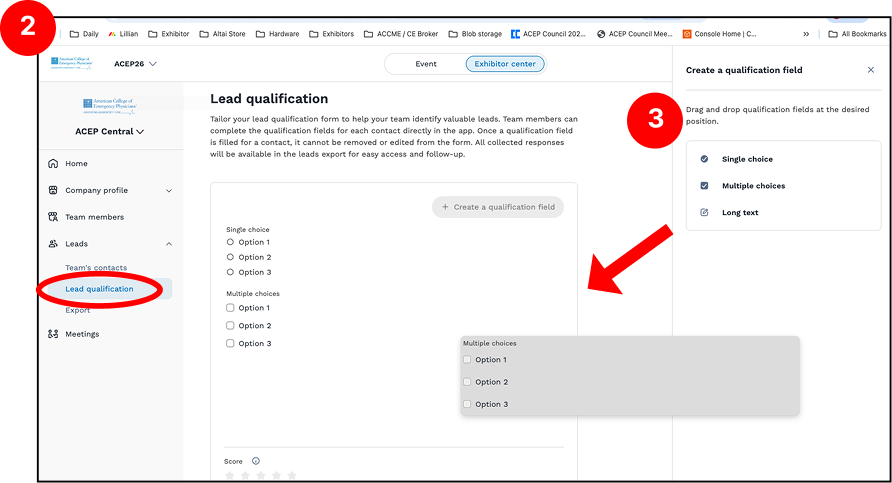
- Navigate to Leads > Lead qualification (Left navigation)
- Click Create a qualification field
- Drag and drop question type to add new questions
- Mouse over each question to edit or delete
Export Leads
MOBILE
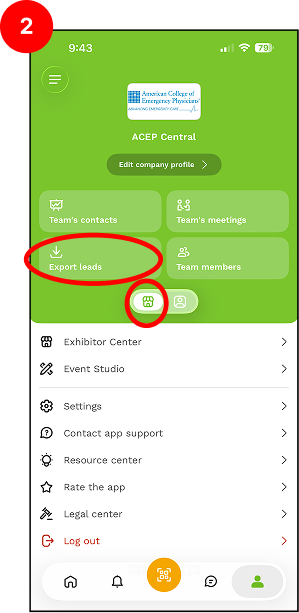
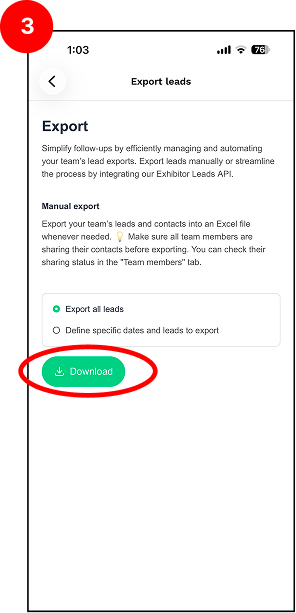
- Open the ACEP Events App and tap the Profile icon (bottom right).
- Select Exhibitor Center > Export Leads
- Select Export all leads > Click Download
DESKTOP
- Go to https://events.acep.org > Select Exhibitor Center (top of page)
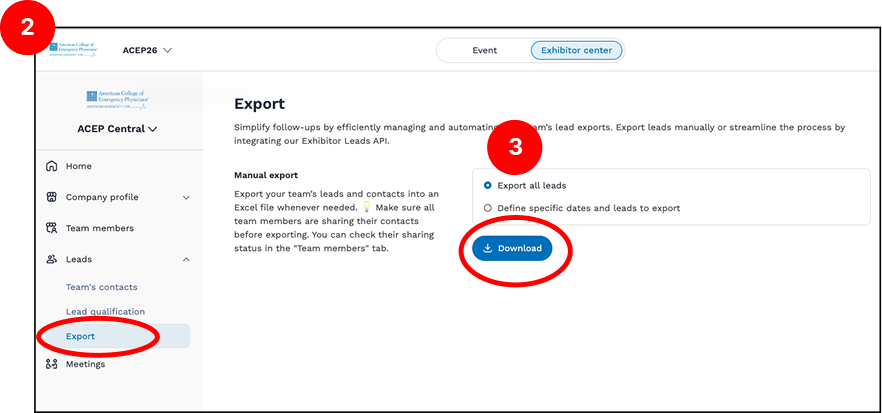
- Navigate to Leads > Export (Left navigation)
- Select Export all leads > Click Download
How to Capture Leads
MOBILE
- Download ACEP Events app.
- Sign in or create an account.
- Select the ACEP26 meeting.
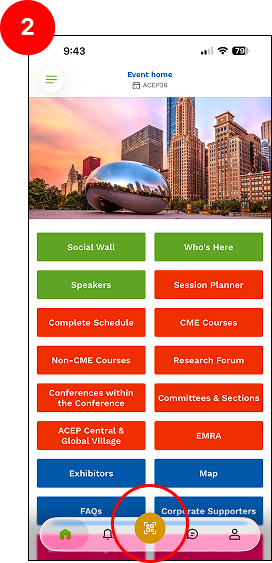
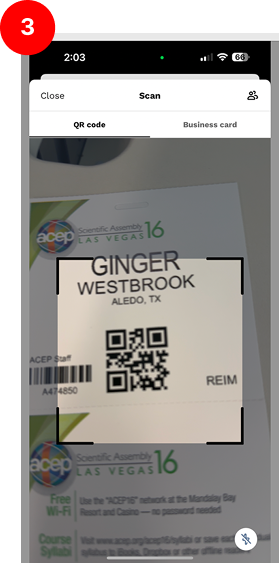
- Click the gold QR code icon to open the scanner.
- Scan QR code on attendee’s badge
- If you have Lead Qualification, your pre-set questions will appear for you to fill out.
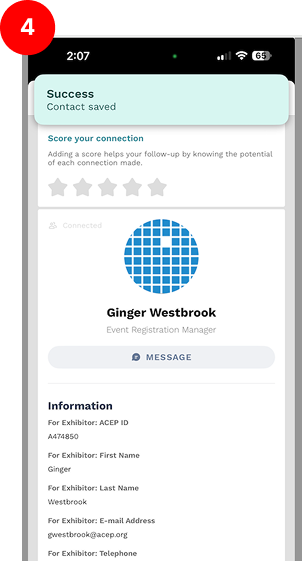
- A success confirmation will appear, indicating that your lead has been captured.
Download Our Mobile App - ACEP Events